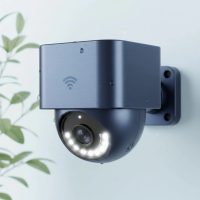
It’s a wired world, but your security doesn’t have to be. In today’s smart home landscape, WiFi security cameras have become the go-to solution for homeowners looking for peace of mind without the hassle of complex installations. Imagine keeping a watchful eye on your property, children, or even your beloved pets, all from the palm of your hand, anywhere in the world. That’s the power and convenience a good WiFi security camera brings to your life. From deterring unwanted visitors to simply checking in on things, these smart devices offer a versatile and accessible way to enhance your home’s safety. Let’s dive deep into everything you need to know about these essential gadgets, from choosing the right one to mastering its setup and maintenance.
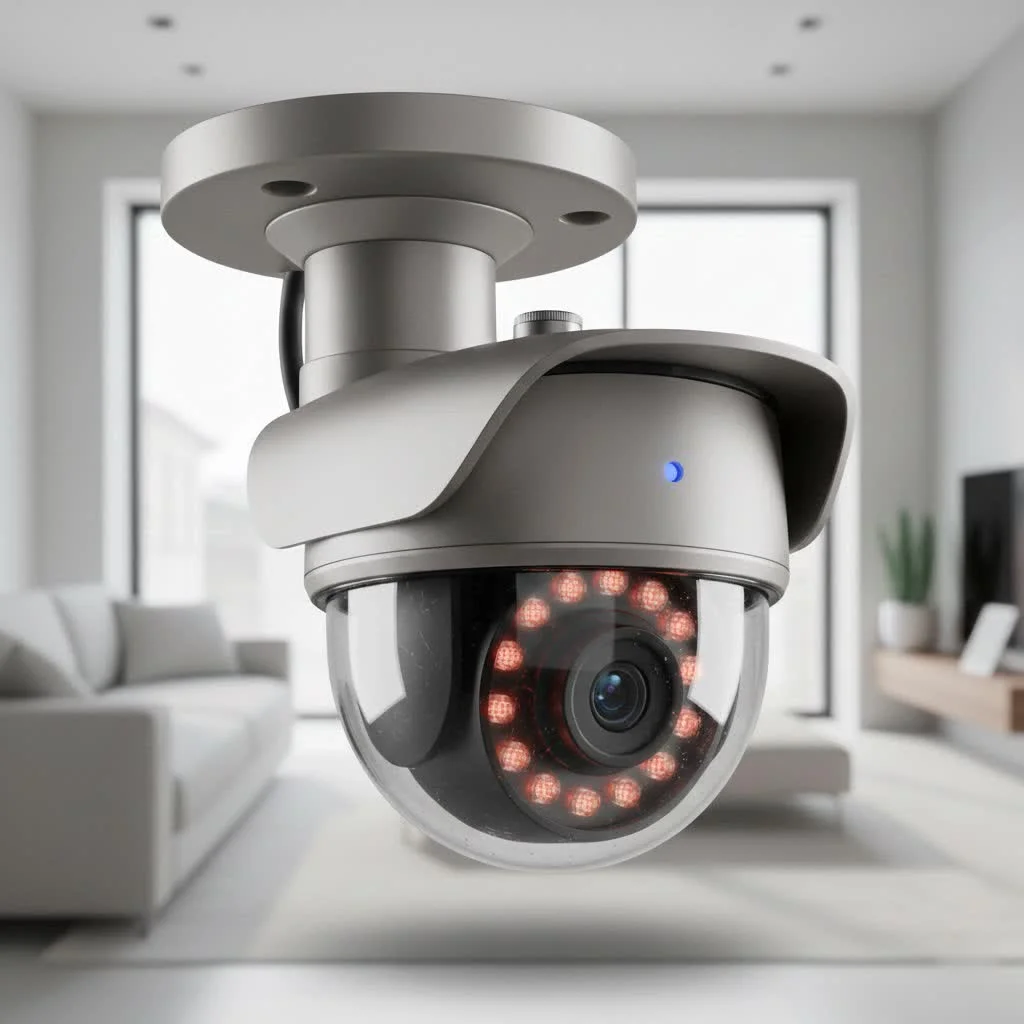
What is a WiFi Security Camera?
At its core, a WiFi security camera is a surveillance device that connects to your home’s wireless internet network to transmit video and audio data. Unlike traditional wired systems that require extensive cabling for both power and data, WiFi cameras primarily use your existing wireless network for communication. While most still need a power source—typically a nearby outlet—the absence of data cables offers unparalleled flexibility in placement. This wireless freedom is why WiFi cameras are often the entry point for many people new to home security, providing an easier, DIY-friendly installation experience.
How Do WiFi Cameras Work?
Think of your WiFi camera as a mini-computer with a lens. It captures video footage and audio, then converts this analog information into digital data. This digital data is then transmitted wirelessly over your home’s 2.4GHz or 5GHz WiFi network to a receiver, which could be a cloud-based storage system, a local SD card, or a network video recorder (NVR). You can then access live feeds or recorded footage remotely through a dedicated smartphone app or computer software, as long as you have an internet connection.
Types of WiFi Security Cameras
The world of WiFi security cameras is diverse, offering options tailored for almost any need. Understanding the different types helps you choose the perfect fit for your specific surveillance goals.
Indoor WiFi Cameras
Designed for discreet placement within your home, indoor WiFi cameras are excellent for monitoring activity inside. They are often smaller, less conspicuous, and may include features like two-way audio to communicate with family members or pets. They are typically plug-in, making them a reliable choice for continuous monitoring in areas like living rooms, hallways, or even a nursery.
Outdoor WiFi Cameras
|
Our Picks for the Best Security Camera in 2026
As an Amazon Associate I earn from qualifying purchases.
|
||
| Num | Product | Action |
|---|---|---|
| 1 | Security Cameras Wireless Outdoor-Solar&Battery Powered 2K 2.4G Cameras for Home Security, Instant Alert, AI Human Detection, Color Night Vision, 2-Way Talk, SD Storage, Work with Alexa, Z1 4P |

|
| 2 | WYZE Cam Pan v3 Indoor/Outdoor IP65-Rated 1080p Pan/Tilt/Zoom Wi-Fi Smart Home Security Camera with Color Night Vision, 2-Way Audio, Compatible with Alexa & Google Assistant, White, 2-Pack |
|
| 3 | REOLINK 4K PoE Security Camera System Wired, 8pcs 8MP PoE Cameras, Smart Person/Vehicle Detection, 16CH NVR with 4TB HDD, H.265, 24/7 Recording, High Bitrate & Clear Stream, RLK16-800D8 |
|
| 4 | Tapo 2K Pan/Tilt Security Camera for Baby Monitor, Dog Camera w/Motion Detection, 2-Way Audio Siren, Night Vision, Cloud&SD Card Storage, Works w/Alexa & Google Assistant, 2-Pack (Tapo C210P2) |
|
| 5 | Security Cameras Wireless Outdoor,2K Indoor WiFi Wireless Cameras,Outside Battery Powered Camera for Home Security,AI Motion Detection,Color Night Vision,Spotlight,Siren Alarm,SD/Cloud Storage,2 Pack |
|
| 6 | WYZE Bulb Cam Security Camera, 2K HD Outdoor Light Bulb Camera, Color Night Vision, Dimmable LED Bulb, Motion Detection, Siren Alarm, Works w/Alexa/Google Assistant. Free Expert Support |
|
| 7 | Tapo TP-Link 2K Pan/Tilt Indoor Security Camera for Baby Monitor, Pet Camera, Motion Detection & Tracking, 2-Way Audio, Cloud & SD Card Storage, Works w/Alexa & Google Home, Black, C211(2-Pack) |
|
| 8 | TP-Link Tapo 1080P Indoor Security Camera for Baby Monitor, Dog Camera w/Motion Detection, 2-Way Audio Siren, Night Vision, Cloud & SD Card Storage, Works w/Alexa & Google Home (Tapo C100) |
|
| 9 | Kasa Smart Indoor Pan-Tilt Home Security Camera, 1080p HD Dog Camera w/Night Vision, Motion Detection for Baby & Pet Monitor, Cloud & SD Card Storage, Works w/ Alexa & Google Home, 2.4G WiFi (EC71) |
|
| 10 | WYZE Cam v4 (Latest Model), 2.5K AI Security Camera, Indoor/Outdoor Cameras for Home Security, Baby Monitor & Pet Camera, Vibrant Color Night Vision, No Subscription Required, Free Expert Help |
|
Built to withstand the elements, outdoor WiFi cameras are rugged, weatherproof (often IP65-rated or higher), and designed for exterior surveillance. They frequently include enhanced night vision, wider fields of view, and sometimes built-in spotlights to deter intruders. When considering an outdoor WiFi security camera, ensure it has a strong WiFi signal where it’s mounted, as exterior walls and distance can degrade connectivity.
Battery-Powered vs. Wired WiFi Cameras
This is a crucial distinction. Battery-powered WiFi cameras offer maximum flexibility in placement since they don’t need to be near an outlet. They’re ideal for hard-to-reach spots or temporary monitoring. However, they require periodic recharging or battery replacement, and their recording modes are often optimized to conserve battery life, meaning shorter clips or less continuous recording.
Wired WiFi cameras (which still use WiFi for data, but are powered by a cable) provide a more consistent and reliable connection without the worry of battery life. They are great for high-traffic areas where continuous recording is desired. Some battery-powered cameras can be augmented with solar panels, significantly extending the time between charges.
PTZ (Pan-Tilt-Zoom) WiFi Cameras
For those who want comprehensive coverage from a single device, PTZ WiFi cameras are a game-changer. These cameras allow you to remotely adjust their horizontal (pan) and vertical (tilt) angles, and often digitally or optically zoom in on details. This flexibility means you can scan a wide area or focus on specific points of interest from your phone.
Doorbell Cameras with WiFi
Combining the functionality of a doorbell with a security camera, these devices offer a convenient way to monitor your front door, see and speak to visitors, and receive alerts when someone approaches. They typically integrate seamlessly into your existing WiFi security camera ecosystem.
Key Features to Look For in a WiFi Security Camera
Choosing the right WiFi security camera can feel overwhelming with the myriad of features available. Here’s a breakdown of the most important ones to consider:
Resolution and Video Quality
Higher resolution means clearer images. While 1080p HD is standard, many advanced WiFi cameras now offer 2K or even 4K resolution, providing exceptional detail. This is crucial for identifying faces or license plates. Look for cameras with HDR (High Dynamic Range) for better image quality in challenging lighting conditions with both bright and shadowed areas.
Field of View and Night Vision
The field of view (FOV) indicates how wide an area the camera can see. A wider FOV (e.g., 120-180 degrees) means fewer blind spots. Night vision is essential for 24/7 surveillance. Most cameras use infrared (IR) LEDs for black-and-white night vision, but some offer color night vision, which can provide more detail in low-light conditions thanks to advanced sensors or built-in spotlights.
Motion Detection and Alerts
This feature is the cornerstone of effective security. A good WiFi security camera will detect motion and send instant alerts to your smartphone. Look for advanced features like customizable motion zones (to ignore street traffic, for example) and AI-powered person, vehicle, or package detection, which can significantly reduce false alarms.
Two-Way Audio
The ability to hear and speak through your camera is incredibly useful. Two-way audio allows you to communicate with delivery drivers, welcome guests, or even verbally deter intruders, adding an active layer of security.
Storage Options: Cloud vs. Local
Where your footage is stored is a critical consideration.
- Cloud Storage: Offers convenient remote access, automatic backups, and often includes advanced AI features. However, it usually comes with a monthly subscription fee.
- Local Storage: Typically involves a microSD card slot on the camera or a base station/NVR. This option offers subscription-free recording and keeps your footage private, but physical access to the device is needed to retrieve footage, and the storage capacity is finite. Many cameras offer a hybrid approach, combining local storage with optional cloud backup.
Smart Home Integration
If you have a smart home ecosystem (like Google Assistant or Amazon Alexa), look for WiFi cameras that seamlessly integrate. This allows for voice control, automated routines, and a unified smart home experience.
Privacy and Security
Given the sensitive nature of surveillance, privacy and security are paramount. Ensure the camera brand prioritizes strong encryption, offers two-factor authentication (2FA) for your account, and provides regular firmware updates to patch vulnerabilities.
How to Install a WiFi Security Camera
One of the biggest advantages of WiFi security cameras is their relatively easy installation. Here’s a general guide:
Planning Your Camera Placement
Before you drill, plan! Walk around your property, both inside and out, to identify critical areas you want to monitor. Consider:
- Field of View: What exactly do you want the camera to see? Avoid blind spots.
- WiFi Signal Strength: This is crucial. Use your phone’s WiFi signal indicator at your desired mounting points. You want a strong, stable signal (aim for at least -67 dBm RSSI). If the signal is weak, consider a WiFi extender or moving your router.
- Power Source: Most WiFi cameras need power. Identify nearby outlets or consider battery-powered options.
- Height and Angle: Position cameras high enough to be out of reach (typically 8-10 feet for outdoor cameras) but still able to capture clear images.
- Lighting: Ensure good ambient lighting or rely on strong night vision features. Avoid direct harsh light into the lens.
The Installation Process
- Install the App: Download the camera’s companion app on your smartphone and create an account. This is usually the first step, as many setup processes begin here.
- Power Up: Plug in your WiFi security camera to a power source. Wait for the status LED to indicate it’s ready for pairing.
- Sync to App: Follow the on-screen instructions in the app to connect the camera to your home WiFi network. This usually involves scanning a QR code on the camera or entering network credentials.
- Mount the Camera: Once connected, hold the mounting bracket against your chosen location, mark the screw holes, and drill. Insert wall anchors if needed, then secure the bracket and attach the camera. Ensure it’s firmly fastened and angled correctly.
- Test: Before finalizing, test the camera’s live view, motion detection, and any other features to ensure everything is working as expected.
“Remember, while WiFi cameras are generally easier to install, always double-check the manufacturer’s specific instructions,” advises John Sterling, a seasoned security systems integrator with over two decades in the field. “Proper placement for optimal WiFi signal is often the most overlooked yet critical step for reliable performance.”
Configuring and Using Your WiFi Security Camera System
Installation is just the beginning. Getting the most out of your WiFi security camera involves smart configuration:
Setting Up the App
The camera’s mobile app is your central command center. Explore its interface to understand all available settings, from video quality adjustments to notification preferences.
Customizing Motion Zones and Alerts
To avoid constant “false” alerts from trees swaying or pets roaming, customize your motion detection zones. Most apps allow you to draw specific areas within the camera’s view where you want motion to be detected. Adjust sensitivity levels to fine-tune detection for your environment.
Accessing Live View and Recordings
The app will typically provide immediate access to a live stream from your camera. You can also review recorded footage, which is usually organized by event, date, or time. Many systems allow you to download clips for safekeeping or sharing.
Sharing Access
If multiple family members need to access the camera feeds, most apps offer secure ways to share access, allowing others to view or even control the camera with their own accounts.
Maintenance and Troubleshooting Common WiFi Camera Issues
Even the best WiFi security camera can run into occasional hiccups. Regular maintenance and knowing how to troubleshoot common issues will keep your system running smoothly.
Regular Maintenance Tips
- Clean the Lens: Dust, dirt, and spiderwebs can obscure the camera’s view. Gently clean the lens with a soft, dry cloth.
- Check Firmware Updates: Manufacturers regularly release firmware updates to improve performance, add features, and patch security vulnerabilities. Enable automatic updates or check manually within your app.
- Inspect Power Connections: For wired WiFi cameras, ensure power cables are secure and undamaged, especially for outdoor installations where elements can cause wear and tear.
- Monitor WiFi Signal: Periodically check your camera’s WiFi signal strength through the app to ensure it remains stable.
Troubleshooting Connectivity Problems
One of the most common issues is a WiFi security camera going offline.
- Weak WiFi Signal: This is the primary culprit. Try repositioning the camera closer to the router, or invest in a WiFi extender. Physical obstructions like thick walls or metal can severely degrade signals.
- Insufficient Bandwidth: If you have many devices on your network, your camera might not get enough bandwidth, leading to lag or disconnections.
- Router Issues: Reboot your WiFi router. Sometimes, a simple restart can resolve network glitches.
- Frequency Mismatch: Most WiFi cameras operate on the 2.4GHz band. If your router broadcasts both 2.4GHz and 5GHz under the same name, your camera might struggle to connect. Consider splitting your WiFi bands and naming them differently (e.g., “Home-2.4G” and “Home-5G”).
- Outdated Firmware: Ensure your camera’s firmware is up to date, as older versions can cause compatibility issues.
Addressing Video Quality Issues
- Dirty Lens: A smudged lens can drastically reduce video clarity. Clean it.
- Resolution Settings: Check your camera settings in the app; your system might be defaulting to a lower resolution if the network is busy.
- Lighting: Ensure adequate lighting. If night vision is washed out, it might be due to reflections or an IR light hitting something too close to the lens.
- Internet Speed: For cloud-based viewing, your internet upload speed plays a significant role. If it’s too slow, you might experience lag or lower quality streams.
Power and Battery Management
For battery-powered WiFi cameras, regularly check battery levels and recharge or replace them as needed. If you forget, your camera will simply stop recording, leaving you unprotected.
Expert Insights on WiFi Security
“While the convenience of a WiFi security camera is undeniable, don’t overlook the fundamentals of network security,” emphasizes Dr. Evelyn Reed, a cybersecurity expert specializing in IoT devices. “Always use strong, unique passwords for your WiFi network and camera accounts. Enable two-factor authentication, and be vigilant about firmware updates. A secure camera is a trusted camera.”
Frequently Asked Questions (FAQ)
What is the main benefit of a WiFi security camera?
The main benefit of a WiFi security camera is its ease of installation and flexible placement options, as it connects wirelessly to your home network without needing extensive data cabling. This makes DIY setup straightforward and allows for remote monitoring from anywhere with an internet connection.
Do WiFi cameras need internet to record?
Many WiFi cameras can record footage locally to a microSD card even without an internet connection. However, an internet connection is required for remote viewing, cloud storage, and receiving real-time alerts on your smartphone.
How far can a WiFi security camera transmit?
The transmission range of a WiFi security camera depends on your router’s strength, environmental obstructions, and the camera’s antenna. Typically, they work best within 30-150 feet of a strong WiFi signal. Walls, large appliances, and other wireless interference can significantly reduce this range.
Are WiFi cameras secure from hackers?
Reputable WiFi security cameras employ encryption and offer security features like two-factor authentication to protect your data. However, like any internet-connected device, they can be vulnerable to hacking if not properly secured with strong passwords and regular firmware updates.
Can I use a WiFi camera without a subscription?
Yes, many WiFi cameras offer local storage options (like a microSD card) that allow you to record footage without a monthly subscription. However, features like cloud storage, advanced AI detection, and extended video history often require a paid subscription.
Conclusion
A modern WiFi security camera is more than just a gadget; it’s a vital tool for safeguarding what matters most. With over 15 years of experience in security systems, I can tell you that the advancements in wireless surveillance have made robust home security accessible to everyone. By understanding the different types, key features, and best practices for installation and maintenance, you can confidently choose, set up, and manage a system that truly protects your home and provides invaluable peace of mind. Embrace the smart, flexible world of wireless security, and empower yourself with the ability to watch over your property from anywhere.
Get our weekly buyer guide
Practical specs, not advice. Unsubscribe anytime.